Smart Cap Frequently Asked Questions
Below are some of the most common questions people have about their Smart Cap
In this article
- No red light is flashing, does that mean it’s not working?
- How do I share my trap data with others?
- Can I change my Trap location?
- Can other people see where my trap is located?
- What is the Smart Cap Bluetooth range?
- Why can't I see the trap in nearby Bluetooth devices?
No red light is flashing, does that mean it’s not working?
The lights on the top of Smart Cap only flash when it is awake, no lights mean it’s sleeping to save power. The red light only flashes continuously then it has new strike information it wants to communicate. Otherwise you'll only see a light displayed when it senses movement, and will only flash for a minute. To make sure the battery is working you can unscrew the Cap and give it 4-5 firms shakes.
How do I share my trap data with others?
One of the unique benefits of using the Smart Cap is the ability to share your trap data with others. It means others can help maintain your trap(s) and monitor your success too. Perfect if you’re working with your community to solve a pest problem together! Just follow the steps below:
- Make sure the recipient has the Goodnature App installed and they've created a Goodnature account
- Click on the Traps tab at the bottom of your App screen
- Tap the three dots next to the trap you want to share
- Tap the Share Trap option in the list
- Copy the link and send it to the person you would like to Share your Trapping data with via any messaging app. The link is valid for 7 days, each link only works for 1 person so if you are sharing the trap with more than one person you need to generate a new link for each.
Can I change my Trap location?
Moving your trap is a great way to target pests in different areas, or maybe you’re moving house, whatever the reason, you can update your trap’s location in your Goodnature app by following the below instructions:
- Tap the 'Traps' tab at the bottom of the screen
- Tap the three dots next to the trap you want to update
- Tap 'Trap details' in the menu
- Tap 'Edit' next to 'Trap location'
You can then either tap on a map to drop a pin or enter the coordinates, after which tap 'Save'.
Can other people see where my trap is located?
Unless you share your trap data with other Goodnature app users, no one can see your trap’s exact location. We’ll add your trap data to our strike density heat map (see the Map page of our app) so that you and your conservation community can see how your efforts are combining to reduce pests across the country.

What is the Smart Cap Bluetooth range?
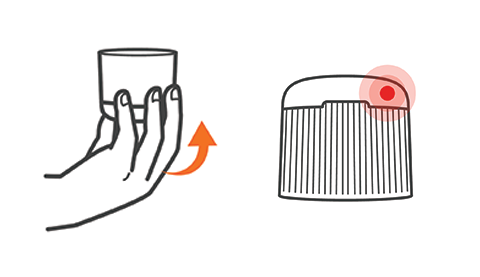
The Smart Cap Bluetooth technology works up to ~20 metres, though it can be limited by things like physical obstacles or terrain between your smartphone and trap. If you're struggling with connectivity you can wake up the Smart cap by briefly removing it from your trap and giving it a firm shake, then replacing it back on the trap.
Bluetooth can connect directly to your phone and it doesn't rely on cell phone coverage or Wi-Fi. Our traps are laid across all types of terrain, so by using Bluetooth the Smart Cap can work in all environments, without requiring a phone signal.
If you are outside of the Bluetooth range when a strike happens your Smart Cap will hold this data until you are next within range to collect it. The Smart Cap lets you know what day and time the strike occurred, what the air temperature was, and how many strikes are left before you need to replace the gas canister and when to change the paste.
To find out more about how to receive data from the Smart cap check out this article.
Why can't I see the trap in nearby Bluetooth devices?
The Smart Cap's Bluetooth technology works differently to other common Bluetooth devices like headphones and speakers, as you often won't see the Smart Cap in the Bluetooth settings of your device. If you have an Android device, you may be able to see the Smart Cap in your Bluetooth devices list, however, the phone will be unable to pair with the cap from here. You can only connect to the Smart Cap from within the Goodnature App.
For more information, this article covers how to activate your Smart Cap to your device. And you can watch this demonstrated in the short video below.